Figma MCP guide for designers
March 2026
How to connect AI tools to Figma, what works and what doesn't
TL;DR
MCP is what lets AI tools talk to Figma directly. There are three types: Desktop (local, no login issues, but can't push to Figma), Remote (cloud-based, can push to Figma, but your company login might block it), and Dev Mode (just a setup wizard for the other two).
If your company login blocks the Remote MCP, use a personal Figma account as a workaround while IT fixes it. The only way to push designs from code into Figma right now is Claude Code + Remote MCP.
Cursor can pull from Figma but can't push. Also make sure your Figma file is set to "Anyone with the link can view" or MCP won't be able to access it.
1. What is MCP?
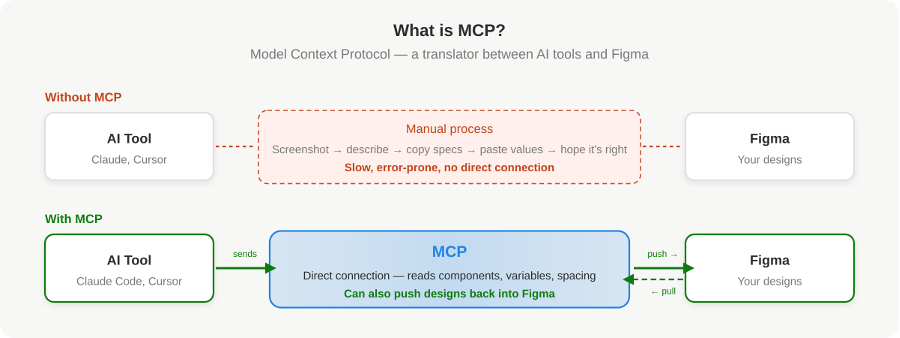
MCP (Model Context Protocol) is basically a translator between AI tools and Figma. It lets tools like Claude Code and Cursor read your Figma files directly — and in some cases, send designs back into Figma.
Without MCP, you'd have to manually export designs, copy specs, or screenshot things. With MCP, the AI tool has a direct connection to your Figma file and can see your components, colours, spacing, and variables.
2. The Three Types of Figma MCP
There are three ways to connect AI tools to Figma. They look similar but work very differently.
2.1 Desktop MCP
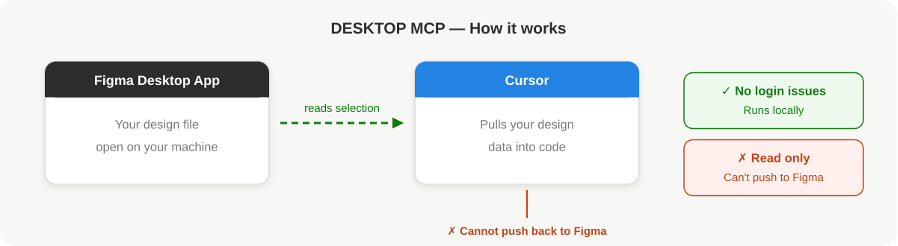
How it works: You open the Figma Desktop app on your computer. It runs a small local server in the background. Your AI tool (usually Cursor) connects to that server to read whatever you've selected in Figma.
Think of it like: Figma Desktop is sharing its screen with Cursor. Cursor can see what you're looking at, but it can't change anything in Figma.
✅ No login issues — it runs on your machine, so your company login doesn't get involved. ❌ Can't push to Figma — it's read-only. It pulls designs out but can't send anything back.
2.2 Remote MCP
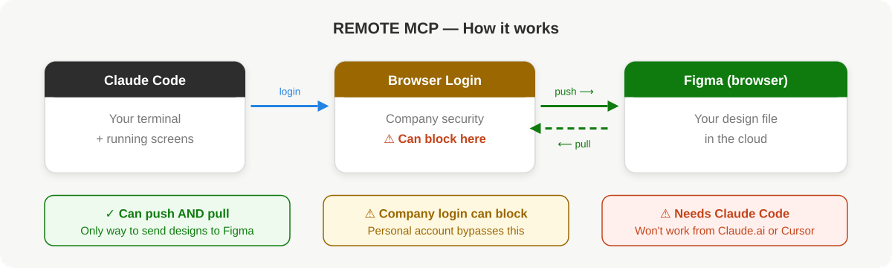
How it works: Instead of running locally, this connects to a server hosted by Figma on the internet. You authenticate through your browser (logging into Figma), and then your AI tool can read your files and — crucially — push new designs into them.
Think of it like: Giving your AI tool the keys to your Figma account so it can add things on your behalf.
✅ Can push to Figma — this is the only way to send designs from code into Figma. ⚠️ Login issues on company accounts — because it goes through the browser, your company's security setup can block it.
2.3 Dev Mode MCP
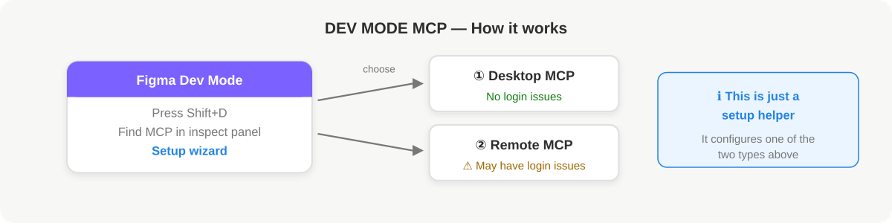
How it works: This is Figma's built-in setup wizard. When you switch to Dev Mode in Figma (Shift+D), there's a section that helps you connect to tools like Cursor. It just walks you through setting up either Desktop or Remote MCP.
Think of it like: A shortcut to set up one of the two options above. It's not a separate type — it's a setup helper.
At a Glance
| Desktop MCP | Remote MCP | Dev Mode MCP | |
|---|---|---|---|
| Where it runs | On your computer | On Figma's servers | Either (it's a setup wizard) |
| Need Figma Desktop app? | Yes | No — browser only | Depends |
| Pull designs FROM Figma | Yes (select in Figma) | Yes (paste a link) | Yes |
| Push designs TO Figma | No | Yes — the only way | No |
| Works with Cursor | Yes | Yes | Yes |
| Works with Claude Code | No | Yes | No |
| ⚠️ Company login risk | No risk — runs locally | High risk — browser login can be blocked | Depends on which type you choose |
| Personal account workaround? | Not needed | Yes — bypasses company login | Depends |
⚠️ What we found: The Remote MCP — the only option that can push designs into Figma — is also the one most likely to be blocked by your company's security setup. The Desktop MCP avoids login issues entirely, but it can't push. This is the core trade-off.
3. Dealing with Company Figma Restrictions
If you're on a company Enterprise Figma account, there are a few things that can get in the way of MCP working.
When Your Company Login Blocks the Connection
When you try to authenticate the Remote MCP, Figma opens in your browser. But instead of letting you log in normally, it redirects you to your company's login system (the same one you use for email, Slack, etc). Sometimes there's a mismatch in the security settings between that login system and Figma, which causes the connection to fail.
The error message typically says something like:
"The certificate configured in Figma does not match the signing certificate."
In plain English: your company's security settings and Figma's security settings are out of sync. It's not something you did wrong, and it's not something you can fix as a designer.
What You Can Do
Option 1 — Ask IT to fix it. This is the proper fix. Tell your IT admin that the Figma login configuration needs updating. Share the Note for IT section below with them.
Option 2 — Use a personal Figma account. Sign up for a free Figma account with a personal email. This bypasses company security entirely because it uses a simple email + password login. You can push designs there and move them to your work account later.
Option 3 — Log into Figma first. Before trying the MCP connection, open a separate browser tab and go to figma.com. Make sure you're fully logged in. Then retry. Sometimes having an active session helps.
Note for IT
The Figma MCP server (mcp.figma.com) uses a browser-based login that goes through the company's identity provider. The error is caused by a mismatch between the security certificate in the identity provider and the one stored in Figma's admin settings. This usually happens when the identity provider's certificate gets rotated but Figma's settings aren't updated to match. The fix is to download the current certificate from the identity provider and upload it to Figma's admin console under the single sign-on settings.
File Permissions
⚠️ Make sure your Figma file is set to "Anyone with the link can view" (or edit). Even after you've authenticated successfully, the MCP connection can fail silently if the file is restricted to specific people. To check: click the Share button in your Figma file, and change the dropdown from "Only people invited" to "Anyone with the link." This is a common gotcha that's easy to miss.
Personal vs Work Figma: How They Compare
| Personal Figma | Work (Enterprise) Figma | |
|---|---|---|
| Logging in for MCP | Simple email + password. No company security involved. | Goes through company security. Can be blocked if settings are misconfigured. |
| Access to team libraries | No — only your personal files | Yes — shared components, variables, styles |
| Cost | Free plan available (limited MCP calls) | Covered by company |
| Sharing with your team | You'd need to copy designs across manually | Everything is immediately visible to the team |
| Pushing designs via MCP | Works straight away | May be blocked until IT fixes the login config |
| Best used for | Quick workaround while login issues are being fixed. Testing and prototyping. | Long-term solution once IT resolves the issue. |
Our Recommendation
Short term: If your work login is blocking the MCP connection, use a personal Figma account to get unblocked right away. Push screens there, then copy them to your work account when you're ready.
Long term: Ask IT to fix the login configuration (details in the Note for IT section above). Once that's sorted, switch to your work account so everything lands directly in the team workspace.
⚠️ Watch out for company IP. If you use a personal account as a workaround, keep it to testing only. Don't push confidential or proprietary designs to a personal account. Move final work to the Enterprise workspace.
4. Step-by-Step: Pushing Screens to Figma
This is the exact workflow we tested and confirmed works. Follow these steps in order.
What You'll Need
- Node.js installed on your machine (free from nodejs.org)
- Claude Code installed. Run
npm install -g @anthropic-ai/claude-codein your terminal. - An Anthropic account (free sign-up when you first open Claude Code)
- A Figma account you can log into — work account if it works, personal account if company login blocks you
- Your screens running locally (e.g. a dev server on localhost:3001)
- Your Figma file set to "Anyone with the link can view" — otherwise MCP can't access it even after authentication
First-Time Setup (do this once)
- Open Terminal (on Mac: Applications → Utilities, or search "Terminal").
- Add the Figma connection. Copy-paste this and hit Enter:
claude mcp add --scope user --transport http figma-remote-mcp https://mcp.figma.com/mcp
- Go to your project folder. For example:
cd ~/path-to-your-project
- Launch Claude Code by typing
claudeand hitting Enter. It'll ask you to trust the folder — say Yes. - Type
/mcpinside Claude Code. You should seefigma-remote-mcpin the list. - Select it and hit Enter. Your browser will open — log into Figma and click Allow Access.
⚠️ If you see a login error at this step, your company security is blocking the connection. See section 3 above for workarounds.
- Check it worked. Type
/mcpagain. It should say connected next to the Figma server.
Pushing a Screen (the fun part)
- Start your dev server in a separate terminal tab (Cmd+T on Mac). For example:
npm run dev - Open your Figma file in the browser. Copy the URL from the address bar.
- In Claude Code, type something like:
Use the Figma MCP generate_figma_design tool to capture the screen at http://localhost:3001/feed and push it to: [paste your Figma URL]
- Check your Figma file — your screen should appear as an editable frame. Done!
Can't Find Your Project Folder?
If your dev server is running but you don't know where the project files are, type this in Claude Code:
lsof -i :3001 | head -5
Replace 3001 with your port number. This shows the process running the server. Then use the process ID to find the folder:
lsof -p [process-id] | grep cwd
5. For Cursor Users: Pulling Designs from Figma
The steps above cover Claude Code, which pushes to Figma. If you're using Cursor instead (for pulling Figma designs into code), the setup is slightly different — and involves a Personal Access Token.
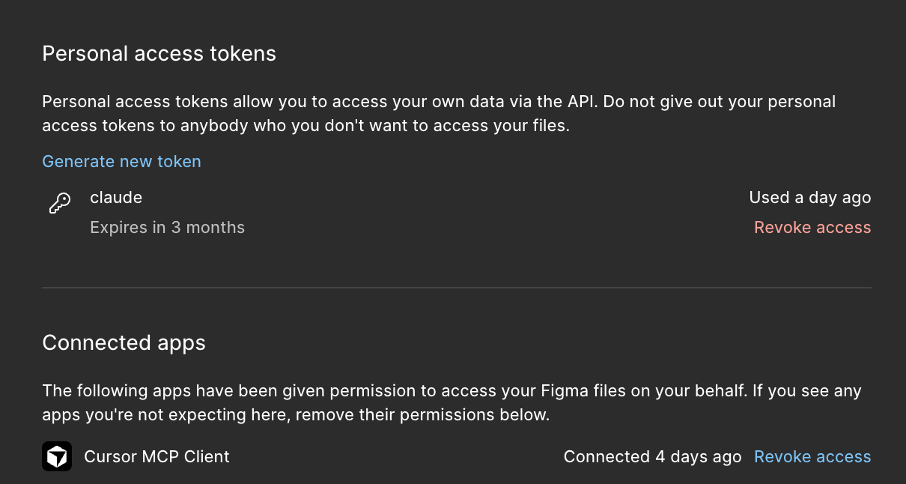
What's a Personal Access Token?
Think of it as a password that lets Cursor talk to Figma on your behalf. Instead of logging in through a browser (like Claude Code does), Cursor needs this token pasted into its settings. You generate it once in Figma and it stays valid until you revoke it.
⚠️ Important: This is different from the browser login used by Claude Code. Claude Code uses the Remote MCP with browser-based login. Cursor uses either the Desktop MCP (no token needed) or the Remote MCP with a Personal Access Token.
Which MCP Does Cursor Use?
Option A — Desktop MCP (no token needed): If you have the Figma Desktop app installed, Cursor connects to it directly on your machine. No login, no token, no company security issues. You just select a component in Figma Desktop and Cursor reads it. This is the simplest path.
Option B — Remote MCP (token needed): If you use Figma in the browser and don't have the Desktop app, Cursor connects via Figma's cloud server. This requires a Personal Access Token. It also goes through company security, so you may hit the same login issues described earlier.
How to Generate a Personal Access Token
- Go to Figma Settings. Click your profile icon in the top-left of Figma, then Settings.
- Find Personal Access Tokens. Scroll down to the Account section. Click "Generate new token."
- Set the right permissions. Tick these four and leave everything else unchecked:
file_content:read·file_metadata:read·library_assets:read·library_content:read - Click Generate Token. Copy the token immediately — you won't be able to see it again.
- Add it to Cursor. Go to Cursor Settings → MCP. Add a new server with this config:
{
  "mcpServers": {
    "figma": {
      "command": "npx",
      "args": ["-y", "@anthropic-ai/figma-mcp-server"],
      "env": {
        "FIGMA_ACCESS_TOKEN": "figd_your_token_here"
      }
    }
  }
}
- Restart Cursor completely (quit and reopen, not just close the tab). The MCP connection won't pick up until you do.
⚠️ Don't paste the token with "Bearer" in front. Just the raw token string starting with
figd_. Cursor adds the Bearer prefix automatically.
Quick Reference: Auth by Tool + MCP Type
| Desktop MCP | Remote MCP | Company login risk? | |
|---|---|---|---|
| Claude Code | N/A | Browser login (auto) | Yes — SSO can block |
| Cursor + Desktop | No token needed | N/A | No — fully local |
| Cursor + Remote | N/A | Personal Access Token | Maybe — depends on account |
Bottom line for Cursor users: If you can install the Figma Desktop app, use the Desktop MCP — it's the simplest setup with zero login issues. If you're browser-only, you'll need a Personal Access Token and may hit the same company security blockers. Remember: Cursor can only pull from Figma, not push. To push designs into Figma, you need Claude Code.
6. Which Tool Does What?
| Tool | What is it? | Connects to Figma? | Push to Figma? |
|---|---|---|---|
| Claude.ai | Chat in your browser | No | No |
| Claude Code | Chat in your terminal | Yes | Yes — the only one |
| Cursor | Code editor (like VS Code) | Yes | No (pulls only) |
Bottom line: Claude Code + Remote MCP is the only combo that can push designs into Figma right now. Cursor is great for pulling designs out. Claude.ai can't connect to Figma at all.
7. Tips for Designers
- The terminal isn't as scary as it looks. Claude Code is just a chat window that happens to be in your terminal. You type in English, it does the technical stuff.
- Always check what folder you're in. Type
pwdin Claude Code to see your current location. If it's wrong, exit and navigate to the right folder. - Keep your dev server running in a separate tab. Cmd+T opens a new terminal tab. Run your server there and leave it.
- Log into Figma in your browser first. Before trying to connect MCP, make sure you're already signed into Figma. Saves headaches.
- Company login issues aren't your fault. If you hit a login error, it's a config problem on the IT side. Use a personal account as a workaround and flag it to your admin.
- Be careful with company work on personal accounts. Keep personal account usage to testing. Move final designs to the company workspace.
- Check your file permissions. Your Figma file needs to be set to "Anyone with the link can view" or MCP won't be able to access it.